Disclosure: This post contains affiliate links. If you sign up through our links, we earn a small commission at no extra cost to you. We only recommend tools we use and trust.
This post contains affiliate links. If you sign up through our links, we earn a small commission at no extra cost to you. We only recommend tools we use and trust.
Castmagic converts one coaching session recording into a week's content in 15 minutes. This guide walks you through setup, from account creation to publishing AI-generated blog posts and social content—plus automating the entire pipeline with Make.com.
Last reviewed: May 2026 by CoachAutomate Team
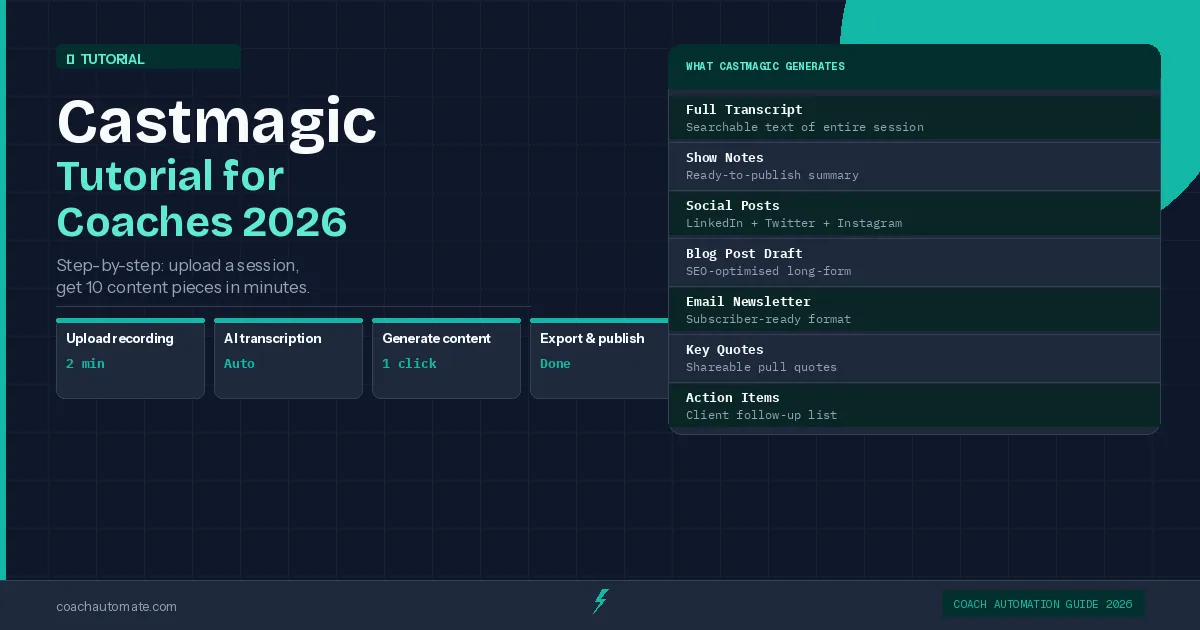
Castmagic automates your content repurposing turns a coaching session recording into a week's worth of content in under 15 minutes. This tutorial covers the complete setup — from creating your account to publishing your first AI-generated blog post and social content.
Related: Complete Guide to Coaching Automation
Related: Best Automation Tools for Coaches
Related: Coaching Automation Workflows
A Castmagic account (free trial available), a coaching session recording (MP3, MP4, M4A, or WAV), and 15 minutes.
Start Your Free Trial Before Step 1
Open your Castmagic account now and follow this tutorial with a real recording. No credit card required.
Try Castmagic Free → →Step 1: Create Your Castmagic Account
Go to Castmagic automates your content repurposing and click 'Start for free'. The trial gives you access to all features with a limited number of uploads — enough to evaluate whether the tool works for your recording style and content needs.
Step 2: Upload Your First Recording
Want this in PDF form?
Get the 32-page Coach Automation Playbook — every workflow in this article, plus 5 more, ready to implement this week.
✓ Check your inbox — the playbook is on its way!
No spam. Unsubscribe anytime.
From your dashboard, click 'New Upload'. Castmagic accepts audio and video files — MP3, M4A, MP4, WAV, and most common formats. For a typical 60-minute coaching session, upload takes 1-2 minutes depending on your connection speed.
| Format | Max Size | Notes |
|---|---|---|
| MP3 | 500MB | Best for audio-only sessions |
| MP4 | 2GB | Video sessions — Zoom recordings |
| M4A | 500MB | iPhone/iPad recordings |
| WAV | 2GB | High-quality studio recordings |
Step 3: Set Content Preferences
After uploading, Castmagic asks you to configure the content type. Select 'Coaching Session' or 'Podcast'. Add context: the topic of the session, your audience, and tone preferences. The more context you provide, the more accurate and on-brand the outputs will be.
Before generating, add a brief description: 'This is a 1:1 coaching session focused on time management for entrepreneurs.' This dramatically improves the relevance of the AI-generated content.
Step 4: Generate Your Content
Click 'Generate'. Castmagic automates your content repurposing processes the recording — transcription typically takes 3-5 minutes for a 60-minute session. Once complete, you will see all content outputs in the left sidebar: Transcript, Blog Post, Show Notes, Social Posts, Email Newsletter, Key Quotes, and Action Items.
See All 7 Outputs From Your Own Recording
The free trial gives you full access to every content output type. Upload a real session and see the results before paying.
Try Castmagic Free → →Step 5: Review and Edit Outputs
Click through each output. The transcript is usually 95%+ accurate and needs minimal correction. The blog post and social posts are first drafts — plan to spend 10-15 minutes editing for your voice and adding specific examples from the session.
| Output | Editing Time | Common Fixes |
|---|---|---|
| Transcript | 5 min | Names, technical terms |
| Blog Post | 15-20 min | Add personal examples, adjust voice |
| Show Notes | 2-3 min | Usually minor tweaks |
| Social Posts | 5 min | Adjust tone, add hashtags |
| Email Newsletter | 10 min | Personalise opening, add CTA |
| Key Quotes | 2 min | Select best ones |
Step 6: Export and Publish
Each output has an Export button — copy to clipboard, download as text, or push to connected platforms. For blog posts, copy into your CMS. For newsletters, paste into Grow your audience with Kit or GetResponse. For social posts, copy into your scheduler.
Step 7: Automate the Entire Pipeline with Make.com
Once comfortable with the manual workflow, connect Automate workflows with Make.com to Castmagic automates your content repurposing's API. Create a scenario that watches your Google Drive for new recordings, sends them to Castmagic automatically, and pushes generated content to your blog CMS and email platform. See the full repurposing automation workflow for the complete Make.com setup.
Follow these 7 steps and you will have a blog post, social captions, and an email newsletter from your next coaching session in under 20 minutes.
Start Your Castmagic Free Trial Now
Try the full workflow with your own recording before committing to a paid plan.
Start Free Trial → →Get the Coach Automation Playbook — Free
One practical automation tip a week, plus the 32-page playbook as soon as you sign up. No filler, unsubscribe in one click.
✓ Check your inbox — the playbook is on its way!
Something went wrong. Please try again.
No spam. Unsubscribe anytime. We respect your inbox.