Disclosure: This post contains affiliate links. If you sign up through our links, we earn a small commission at no extra cost to you. We only recommend tools we use and trust.
This post contains affiliate links. If you sign up through our links, we earn a small commission at no extra cost to you. We only recommend tools we use and trust.
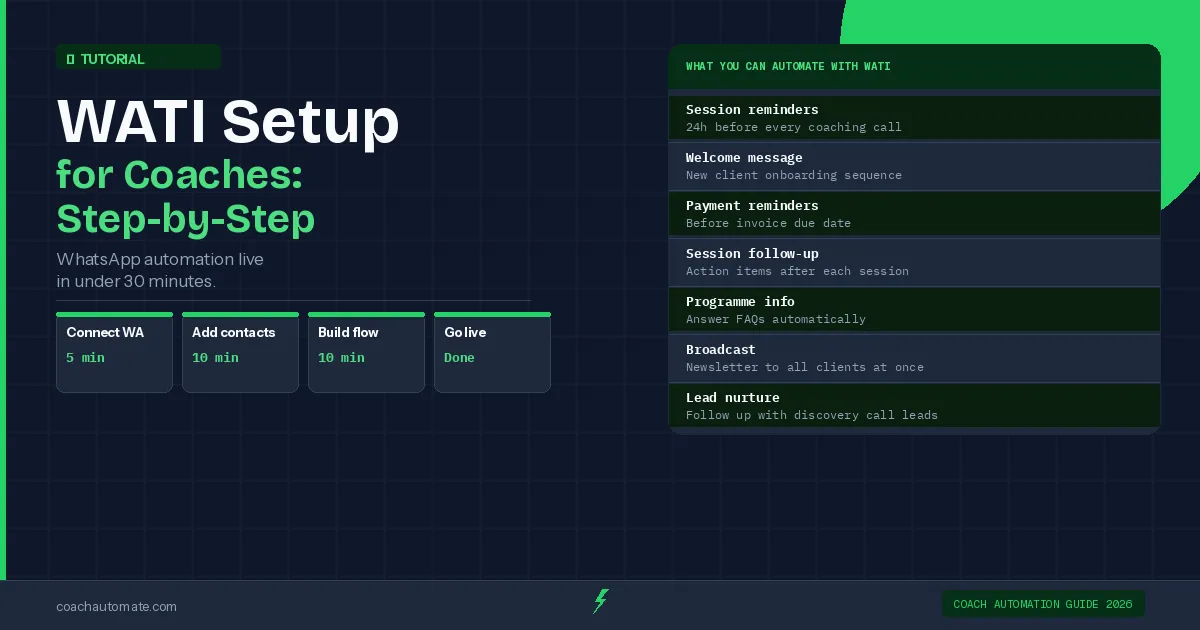
WATI automates WhatsApp client messaging in 30 minutes—session reminders, onboarding sequences, and broadcasts. Set up your account, verify with Facebook Business Manager (1-3 days), import contacts via CSV, build automations in the dashboard, and connect Make.com for external triggers. Saves 2+ minutes per client weekly.
Last reviewed: May 2026 by CoachAutomate Team
WATI automates client messaging easily connects your coaching business to the official WhatsApp Business API, enabling automated session reminders, onboarding sequences, and broadcast messages. This tutorial walks through the complete setup — from creating your account to sending your first automated WhatsApp message.
Related: Best Automation Tools for Coaches
Related: Complete Guide to Coaching Automation
Related: Coaching Automation Workflows
A WATI account (free trial available), a WhatsApp Business phone number (not your personal number), and 30 minutes.
Start Your WATI Free Trial
Open your account now and follow this tutorial to have WhatsApp automation live in 30 minutes.
Try WATI Free → →Step 1: Create Your WATI Account
Go to WATI automates client messaging easily and start a free trial. During signup, you will connect your WhatsApp Business phone number. This must be a number not already registered as a personal WhatsApp account — use a dedicated business number or a new SIM.
Your personal WhatsApp number cannot be connected to the Business API without first migrating it. Use a separate number for your coaching business to avoid disrupting your personal WhatsApp.
Step 2: Connect WhatsApp Business API
Want this in PDF form?
Get the 24-page Coach Automation Playbook — every workflow in this article, plus 5 more, ready to implement this week.
✓ Check your inbox — the playbook is on its way!
No spam. Unsubscribe anytime.
After creating your account, WATI guides you through the Facebook Business Manager verification process. This takes 1-3 business days. During this time, you can build your automation flows and prepare your contact lists — you just cannot send messages until verified.
| Verification Step | Time Required | Notes |
|---|---|---|
| Create Facebook Business account | 15 min | Required for API access |
| Submit business documents | 10 min | Business registration or utility bill |
| Facebook review | 1-3 days | Usually faster for established businesses |
| Phone number verification | 5 min | SMS or call verification |
Step 3: Import Your Contacts
Once verified, import your client contacts via CSV upload. Include at minimum: name, phone number (with country code), and any tags you want to use for segmentation — for example, 'active-client', 'discovery-call', 'programme-name'.
Tags enable you to send targeted broadcasts and trigger specific automation flows. Tag clients by programme, start date, or engagement level on import rather than adding tags manually later.
Step 4: Build Your First Automation — Session Reminder
In the WATI automates client messaging easily dashboard, go to Automation → New Flow. Build a simple session reminder: trigger on a date/time field → send WhatsApp message '24 hours until your session with [coach name]. See you at [time].' This single automation saves approximately 2 minutes per client per week.
Build This Reminder in WATI Free
Session reminders are the fastest ROI automation for coaches. Set up in 10 minutes, save hours every week.
Try WATI Free → →Step 5: Send Your First Broadcast
Broadcasts let you send one message to your entire contact list or a tagged segment. Go to Broadcasts → New Broadcast, select your recipient tags, write your message, and schedule it. Use broadcasts for programme announcements, group session reminders, or monthly newsletters.
Step 6: Connect Make.com for Full Automation
Connect Automate workflows with Make.com to WATI automates client messaging easily to trigger WhatsApp automations from external events — new Stripe payment, new booking in your calendar, new form submission. Make.com's WATI module is native, so no custom API setup is required. See the full WhatsApp automation workflow guide for detailed Make.com scenarios.
Follow these 6 steps and your coaching business will have automated session reminders, a broadcast system, and Make.com integration running on WhatsApp in under 30 minutes of active setup time.
Start Your WATI Free Trial
Full access to chatbot builder, broadcasts, and automation flows. No credit card required.
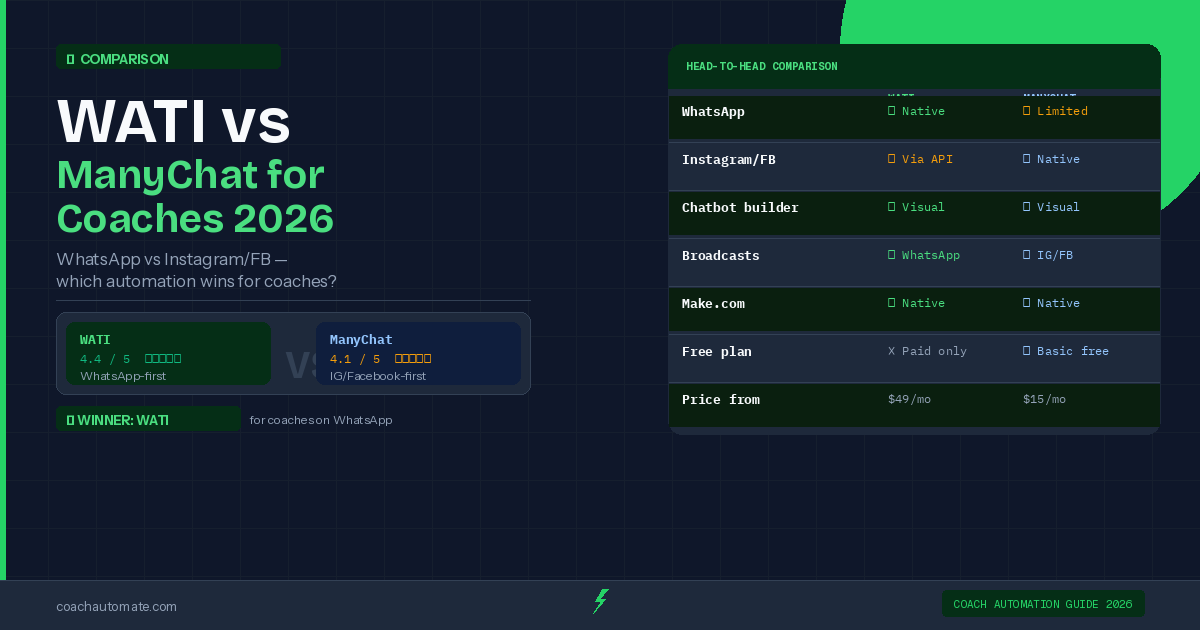
Try WATI Free → →→ Deep dive: WATI vs ManyChat for Coaches 2026: Which Should You Choose?
Frequently Asked Questions
How long does Facebook Business verification take for WATI?
In my experience, Facebook Business Manager verification for WATI usually takes 1–3 business days. You can create your account and build automation flows while you wait, but you won’t be able to send messages through the WhatsApp Business API until verification is complete. I recommend preparing contact lists and message templates during this window so you can start messaging as soon as approval arrives.
Can I use my personal WhatsApp number with WATI?
No — I don’t recommend using a number already registered as a personal WhatsApp account. WATI requires a number dedicated to WhatsApp Business API usage, so use a separate business number or a new SIM. This avoids conflicts and ensures the number can be properly connected to Facebook Business Manager during verification.
What information do I need to import coaching clients into WATI?
When I import contacts, I use a CSV with at minimum: client name, phone number including country code, and any segmentation tags (for example 'active-client', 'discovery-call', or programme names). Tags let you target automations and broadcasts. Make sure phone numbers are clean and formatted consistently to prevent import errors.
How do I set up an automated session reminder in WATI?
I set this up by going to Automation → New Flow in the WATI dashboard. Use a date/time field as the trigger and then add a WhatsApp message action such as: '24 hours until your session with [coach name]. See you at [time].' Test the flow with a sample contact. This simple automation typically saves minutes per client each week.
Can I trigger WATI messages from Stripe payments or calendar bookings?
Yes — I connect WATI to external events using Make.com. Make's WATI module is native, so I can trigger automations from Stripe payments, calendar bookings, or form submissions without custom API work. This lets me send onboarding sequences, payment receipts, or booking confirmations automatically when external events occur.
Get the Coach Automation Playbook — Free
Join 1,000+ coaches getting one practical automation tip every week. Includes the 24-page PDF playbook delivered instantly.
✓ Check your inbox — the playbook is on its way!
Something went wrong. Please try again.
No spam. Unsubscribe anytime. We respect your inbox.